How to Check if an Image Has Alt Text (4 Easy Methods)
Wondering how to check if an image has alt text? This guide walks you through 4 quick and easy methods — from browser DevTools to free accessibility tools — so you can audit your images for WCAG compliance in minutes.
Why Alt Text Matters
Alt text (alternative text) is a short written description added to an image in HTML via the alt attribute. It serves two critical purposes: it allows screen readers to describe images to visually impaired users, and it gives search engines context to understand what an image depicts.
According to the WebAIM Million 2025 report, 95.9% of home pages have detectable WCAG failures, and missing alt text remains the single most common accessibility error found on the web. For site owners, this means most websites have images that screen readers cannot describe and search engines cannot understand.
Under WCAG 1.1.1 (Non-text Content), all meaningful images must have descriptive alt text to achieve Level A conformance. Missing or empty alt text on informational images is one of the most common accessibility violations found on the web today.
So how do you actually check whether an image has alt text? Here are four reliable methods.
Method 1: Inspect the Page Source (View Source)
How do I view page source to find alt text?
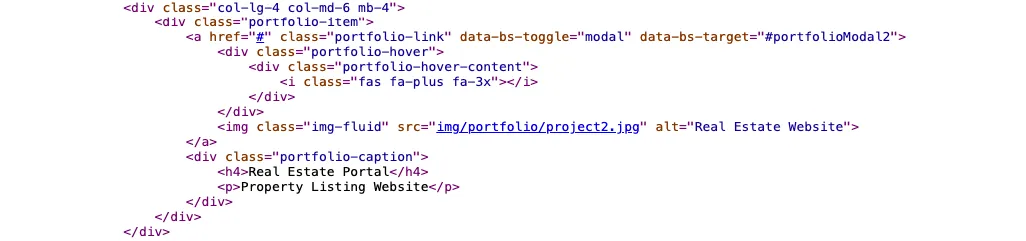
The simplest way to check alt text is to view the raw HTML source of a web page:
- Open the page in your browser.
- Right-click anywhere and select View Page Source (or press
Ctrl+U/Cmd+U). - Use
Ctrl+F/Cmd+Fto search for<img. - For each image tag, look for the
altattribute. For example:<img src="photo.jpg" alt="A woman reading a book in a library">
If the alt attribute is missing entirely, or if it's present but empty (alt=""), that image may need attention. Note that alt="" is intentionally used for decorative images that don't carry meaning — this is valid and correct per WCAG.
Method 2: Use Browser Developer Tools (Inspect Element)
What does the alt attribute look like in DevTools?
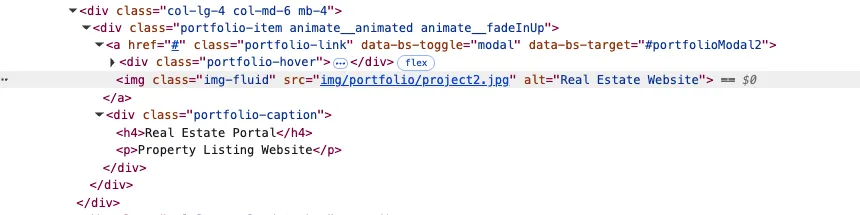
For a faster, more visual approach, use your browser's built-in developer tools:
- Right-click directly on the image you want to check.
- Select Inspect or Inspect Element.
- The DevTools panel will open with the image's HTML highlighted.
- Look for the
altattribute in the highlighted<img>tag.
This method is especially useful when you want to check a specific image quickly without searching through the full page source. You can also hover over the image element in the Elements panel to see a preview, and the alt value will be visible inline.
Method 3: Use the WAVE Accessibility Tool
How does WAVE highlight missing alt text?
The WAVE browser extension from WebAIM is one of the most widely used free accessibility testing tools available. When you activate it on any web page, WAVE scans the entire page and overlays colored icons directly onto the content. A red icon on an image indicates a missing alt attribute, which is a critical WCAG violation. A green icon means the image has alt text present. A yellow icon flags a potential concern, such as alt text that appears suspiciously long, duplicated, or containing only a filename. The extension also provides a sidebar summary showing the total count of errors, alerts, and structural elements, giving you an instant accessibility snapshot of the entire page without needing to inspect a single line of code.
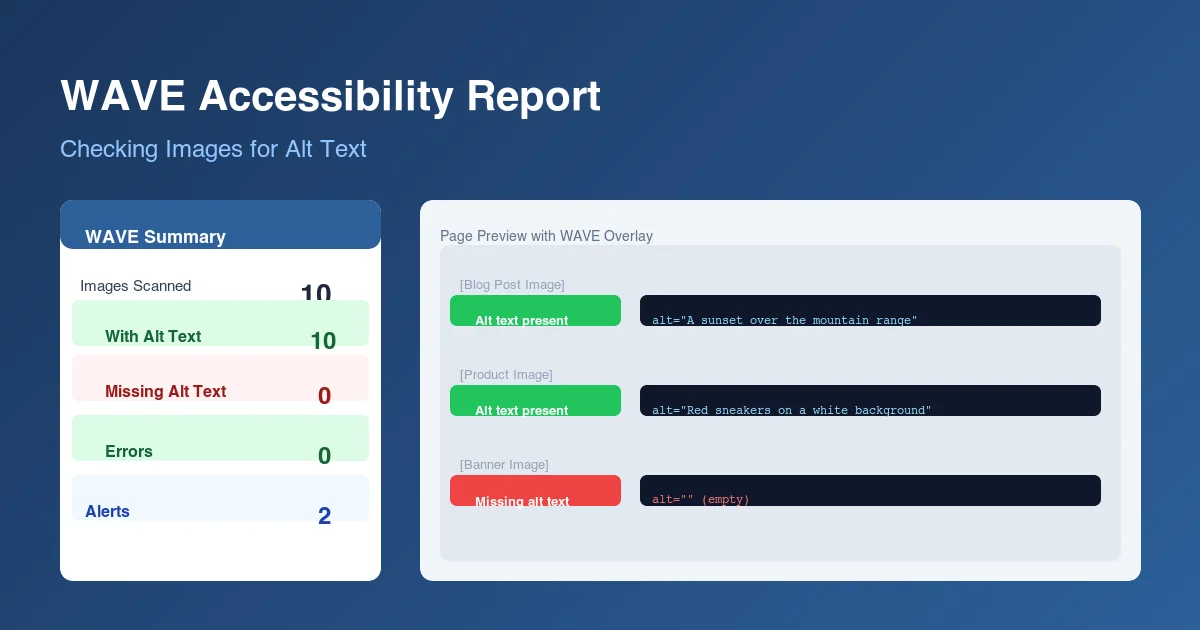
The WAVE Web Accessibility Evaluation Tool (available as a free browser extension or at wave.webaim.org) provides a visual overlay on your page that flags accessibility issues, including missing alt text.
- Install the WAVE browser extension (Chrome or Firefox).
- Navigate to the page you want to check.
- Click the WAVE extension icon.
- WAVE will overlay icons on the page — a red icon marked with an exclamation point indicates a missing alt text error on an image.
- Click any icon for more details about the specific issue.
WAVE also displays a summary count of errors, which makes it easy to see at a glance how many images on the page are missing alt text.
Method 4: Use Alt Audit for a Sitewide Check
Can I check alt text on my entire website at once?
The three methods above are great for checking individual images or pages, but what if you need to audit your entire website at once? That's where Alt Audit comes in.
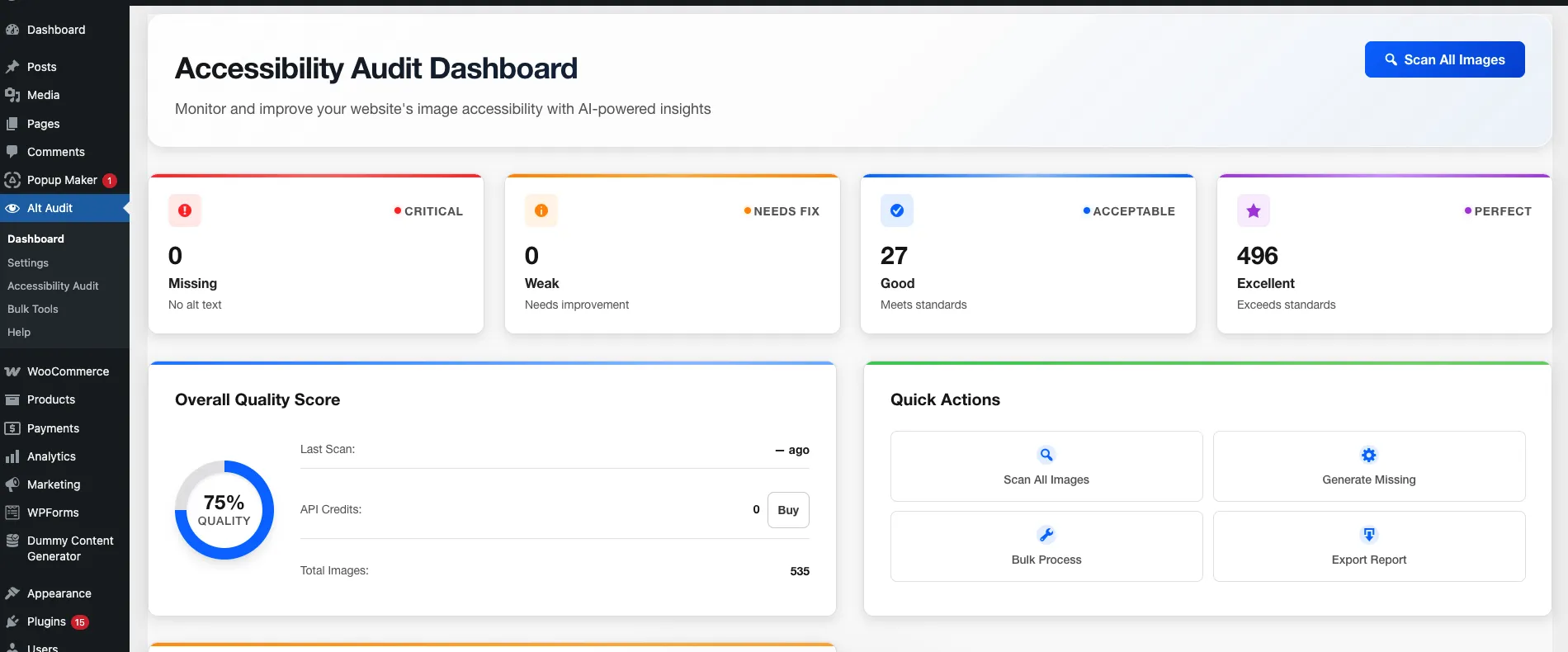
Alt Audit scans your entire site and generates a comprehensive report of every image that is missing alt text, has an empty alt attribute (where it shouldn't be), or has alt text that may be too short, too long, or auto-generated. This saves hours of manual work and gives you a prioritized action list for fixing your accessibility issues.
With Alt Audit, you can:
- Scan thousands of images across your entire domain in minutes.
- See exactly which pages and images are missing alt text.
- Use AI-powered suggestions to generate descriptive alt text automatically.
- Track your progress over time as you fix issues.
Quick Comparison: All 4 Methods
Each method serves a different purpose. Use this table to choose the right approach for your situation.
| Method | Best For | Scope | Cost | Skill Level |
|---|---|---|---|---|
| View Source | Quick spot-checks | Single page | Free | Beginner |
| DevTools | Inspecting specific images | Single element | Free | Intermediate |
| WAVE Extension | Visual accessibility overview | Single page | Free | Beginner |
| Alt Audit | Full site audits at scale | Entire domain | Free tier available | Beginner |
For individual page checks, DevTools or WAVE are the fastest options. For sites with hundreds or thousands of images, an automated crawler like Alt Audit saves hours of manual work by scanning every page and flagging every image that needs attention. The tool prioritizes issues by severity, so you can fix the most impactful problems first and track your progress over time. This is particularly valuable for agencies managing multiple client sites or e-commerce stores with large product catalogs where manual checking would be impractical.
What Makes Good Alt Text?
Once you've identified images missing alt text, you'll want to write effective descriptions. Here's what good alt text looks like:
- Be descriptive and specific: "Golden retriever puppy playing in autumn leaves" is far better than "dog" or "photo".
- Keep it concise: Aim for under 125 characters. Screen readers may cut off longer alt text.
- Don't start with "Image of" or "Photo of": Screen readers already announce that it's an image. Just describe what it shows.
- Reflect context: The same image might need different alt text depending on the surrounding content. A graph on a data page should describe the data trend, not just "bar chart".
- Use empty alt for decorative images: If an image is purely decorative and adds no information, use
alt=""to tell screen readers to skip it.
Common Alt Text Mistakes to Avoid
A WCAG 1.1.1 (Non-text Content) audit across thousands of sites reveals the same patterns repeatedly. Avoiding these common errors can improve both your accessibility score and your search engine visibility.
When auditing your images, watch for these frequent errors:
- Missing alt attribute entirely: Some older CMS systems or third-party plugins may output
<img>tags without anyaltattribute at all. - Filename as alt text: Alt text that reads "IMG_4823.jpg" or "banner-image-v2-final.png" is not helpful to anyone.
- Keyword stuffing: Loading alt text with keywords for SEO purposes ("best cheap shoes buy shoes online cheap shoes") is a poor accessibility practice and may be penalized by search engines.
- Identical alt text on different images: If multiple images on a page have the same alt text, screen reader users won't be able to distinguish between them.
Start Checking Your Alt Text Today
Whether you're a developer, content manager, or SEO specialist, knowing how to check if an image has alt text is a fundamental skill for building accessible, high-performing websites.
For a fast, thorough, and scalable solution, Alt Audit gives you complete visibility into your site's alt text coverage — so you can fix issues faster and stay compliant with WCAG standards.
Frequently Asked Questions
What is alt text and why is it important?
Alt text (alternative text) is a text description added to an image's HTML tag using the alt attribute. It serves two purposes: it allows screen readers to describe images to users with visual impairments, and it helps search engines understand image content for indexing and ranking. Under WCAG 1.1.1, all non-decorative images on a website must have descriptive alt text to be considered accessible.
How do I check alt text in Chrome?
The fastest way is to right-click any image and select "Inspect" to open Chrome DevTools. The <img> tag will be highlighted in the Elements panel, and you can see the alt attribute directly. If no alt attribute exists, the image is missing alt text. You can also press Ctrl+U (Cmd+U on Mac) to view the full page source and search for <img tags to review all images at once.
What should I do if images are missing alt text?
First, determine whether each image is decorative or meaningful. Decorative images (borders, spacers, background patterns) should use an empty alt attribute (alt="") so screen readers skip them. For meaningful images, write a concise description of what the image shows in context. Keep descriptions under 125 characters, avoid phrases like "image of" or "photo of," and focus on the information the image conveys rather than its visual appearance.
Can I automate alt text checking for my entire website?
Yes. Manual methods like View Source and DevTools work well for individual pages, but they are impractical for sites with hundreds or thousands of images. Automated tools like Alt Audit crawl your entire domain, identify every image missing alt text, flag weak or auto-generated descriptions, and prioritize issues by severity. This approach saves hours of manual inspection and ensures no page is overlooked.
Does alt text affect SEO?
Yes. Search engines cannot "see" images directly. They rely on alt text to understand what an image depicts and how it relates to the surrounding content. Well-written alt text helps images appear in Google Image Search results and provides additional relevance signals for the page. According to industry research, pages with optimized image alt text can see measurable improvements in organic image search traffic and overall page rankings.
What is the difference between empty alt text and missing alt text?
Missing alt text means the alt attribute does not exist at all on the <img> tag (<img src="photo.jpg">). This is a WCAG violation because screen readers will often read the filename instead, creating a poor experience. Empty alt text (alt="") is intentional and valid. It tells screen readers to skip the image entirely, which is the correct approach for purely decorative images that add no informational value to the page.
Written by
Rustamjon Akhmedov
Founder & Web Accessibility Specialist
Full-Stack Laravel & WordPress PHP Developer with a passion for web accessibility. Building Alt Audit to help website owners ensure every image has meaningful alt text for better SEO and inclusivity.
LinkedInGo from WCAG guidance to a real compliance workflow
Use the audit and reporting flow to find issues, fix them, and document the result.
Related Reading
Keep following the same topic with articles that connect naturally to this one.
November 2, 2024
Web Accessibility Compliance in 2024: WCAG 2.2 and Legal Requirements
Complete guide to web accessibility compliance in 2024. Learn WCAG 2.2 guidelines, ADA requirements, and how accessibility compliance protects your business and improves user experience.
March 30, 2026
Best Practices for Optimizing Alt Text for SEO (2026 Update)
The best alt text for SEO is descriptive, specific, and natural. It helps Google understand images, improves accessibility, and avoids common mistakes like keyword stuffing or vague labels
February 16, 2026
Harnessing Gemini AI for Automatic Alt Text Generation: A PHP Developer's Guide
Explore how PHP developers can use Google's Gemini AI for efficient, SEO-optimized alt text generation from images.
Ready to Optimize Your Alt Text?
Start with our free AI-powered alt text generator. Get 25 credits monthly with no credit card required.
Start Free Today